
Portal support
When support is available and enabled for an app, customers can start private conversations from its Customer Portal. Your team reads and replies in Customer Portal → Support. These conversations are separate from public feature requests and help articles.
Enable support
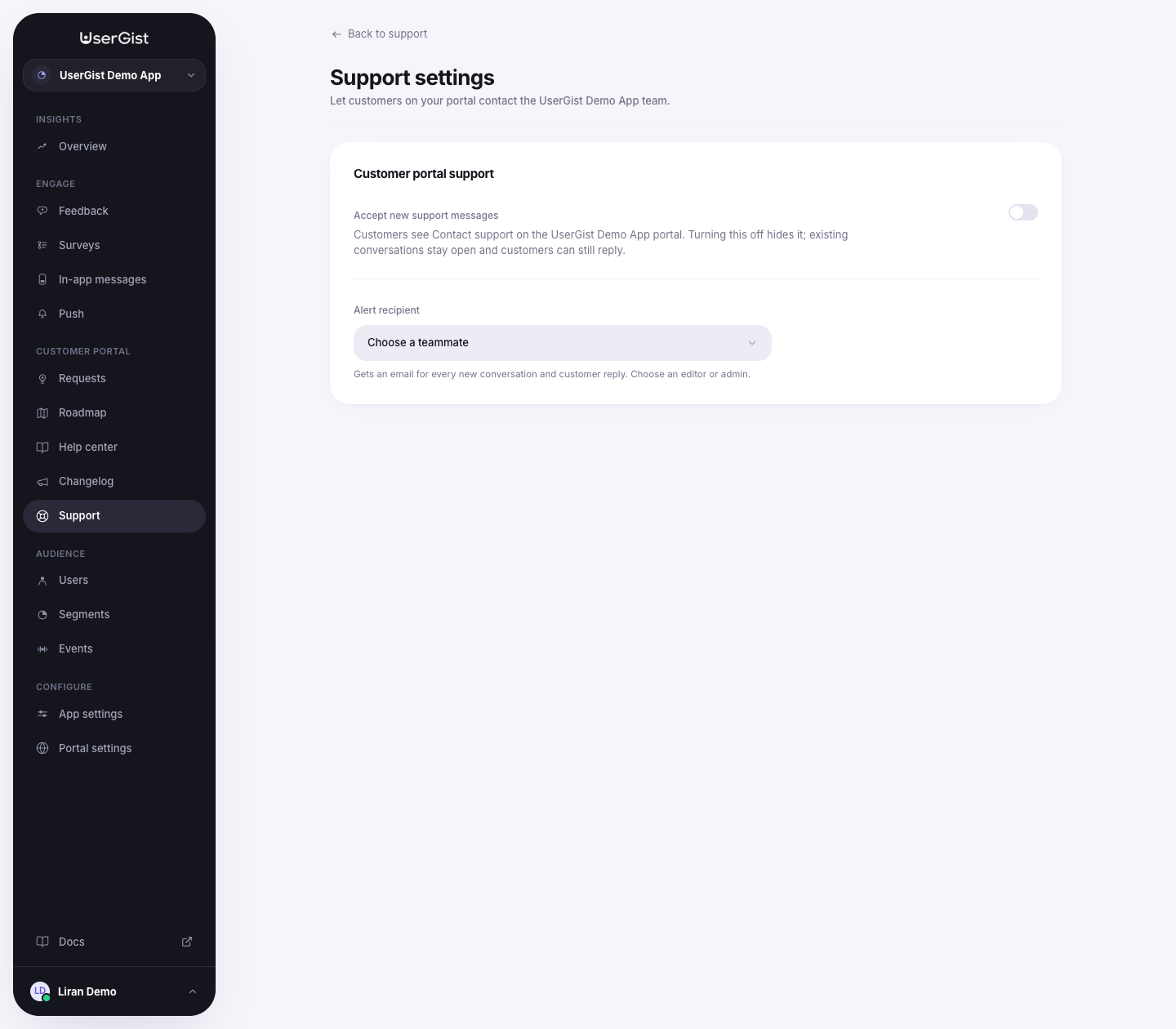
An owner or admin opens Support → Settings, turns on customer support, and chooses the teammate who should receive notification emails. The recipient must be an eligible editor, admin, or owner in the workspace. Save changes.
The company portal must be published and the app included for customers to use support. The environment must also have the support release enabled. If the selected recipient becomes unavailable, choose another eligible teammate in settings.
Turning off Accept new support messages hides the entry point and stops new conversations. Existing conversations remain available and customers can still reply while the portal and app remain reachable.
Customer experience
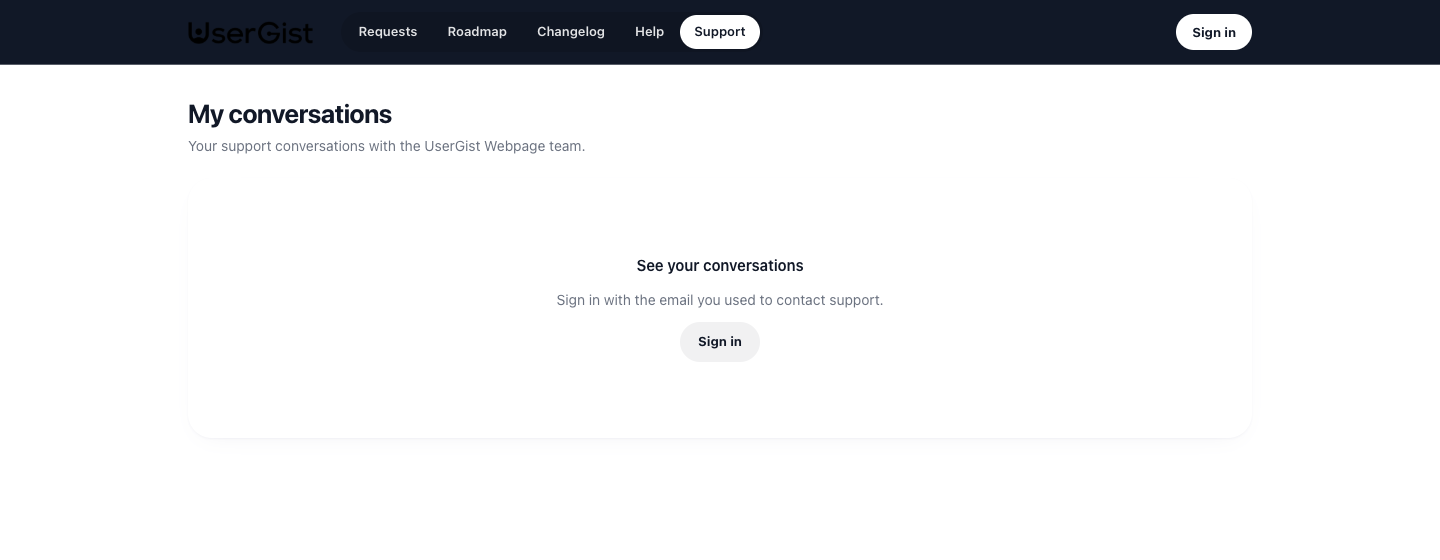
A customer verifies their email using the portal's six-digit code, then opens Support to create a conversation with a subject and message. A subject allows up to 150 characters; each message allows up to 3,000.
Customers see only their own conversations and messages. Your authorized workspace team can read them in the dashboard. A portal session is scoped to the company portal; an SDK token or dashboard token cannot substitute for it.
Reply and manage status
Open a conversation to read the thread and send a plain-text reply. Editors, admins, and owners can reply and change status; viewers can read.
| Status | Meaning |
|---|---|
| Open | A customer message is waiting for your team |
| Waiting on customer | Your team has replied |
| Closed | Your team has closed the conversation |
A new customer message sets the conversation to Open; a staff reply sets it to Waiting on customer. Use Close conversation or Reopen conversation as needed.
Notifications
The chosen teammate receives notification emails for new conversations and customer replies. Customers receive an email notification for a team reply and return to the portal to continue the conversation.
The dashboard shows notification state. If a failed notification is eligible for retry, use its retry action. A saved reply and a delivered email are separate outcomes; check the displayed notification state if someone did not receive an email.
The current conversation workflow uses plain-text messages in the portal. It does not expose attachments, inbound email replies, live chat, or per-ticket assignment controls.